マルチウィジェットの作成
www.liveagent.com に掲載されているような、お問い合わせフォーム・Messenger・WhatsAppリンク・チャットボタンを含むマルチウィジェットをWebサイトに組み込むには、以下のHTMLテンプレートをご利用ください。高度なウィジェット統合に関する詳細な手順については、以下の**記事**をご参照ください。
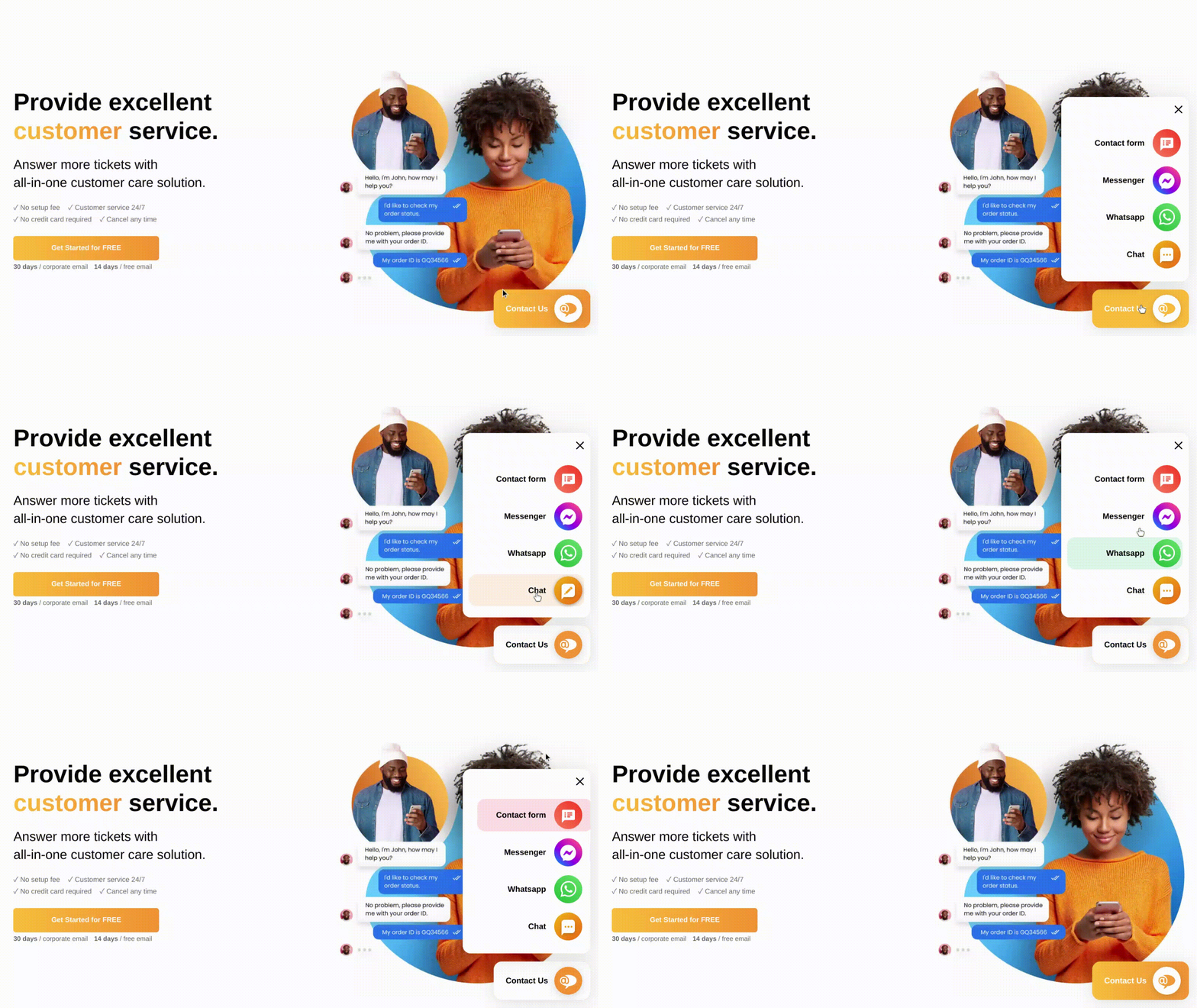
なお、これはLiveAgentのデフォルト機能・ウィジェットではないため、このウィジェットに関するテクニカルサポートは提供しておりません。これはあくまで、弊社Webサイトのようなマルチウィジェットデザインを実現する方法の一例です。Webサイトへのウィジェット統合や、特定のニーズに合わせたカスタマイズについては、Webデベロッパーにお問い合わせいただくことを推奨します。LiveAgentのデフォルトウィジェットの作成をご希望の場合は、**チャットボタンまたはお問い合わせフォーム**に関する記事をご参照ください。
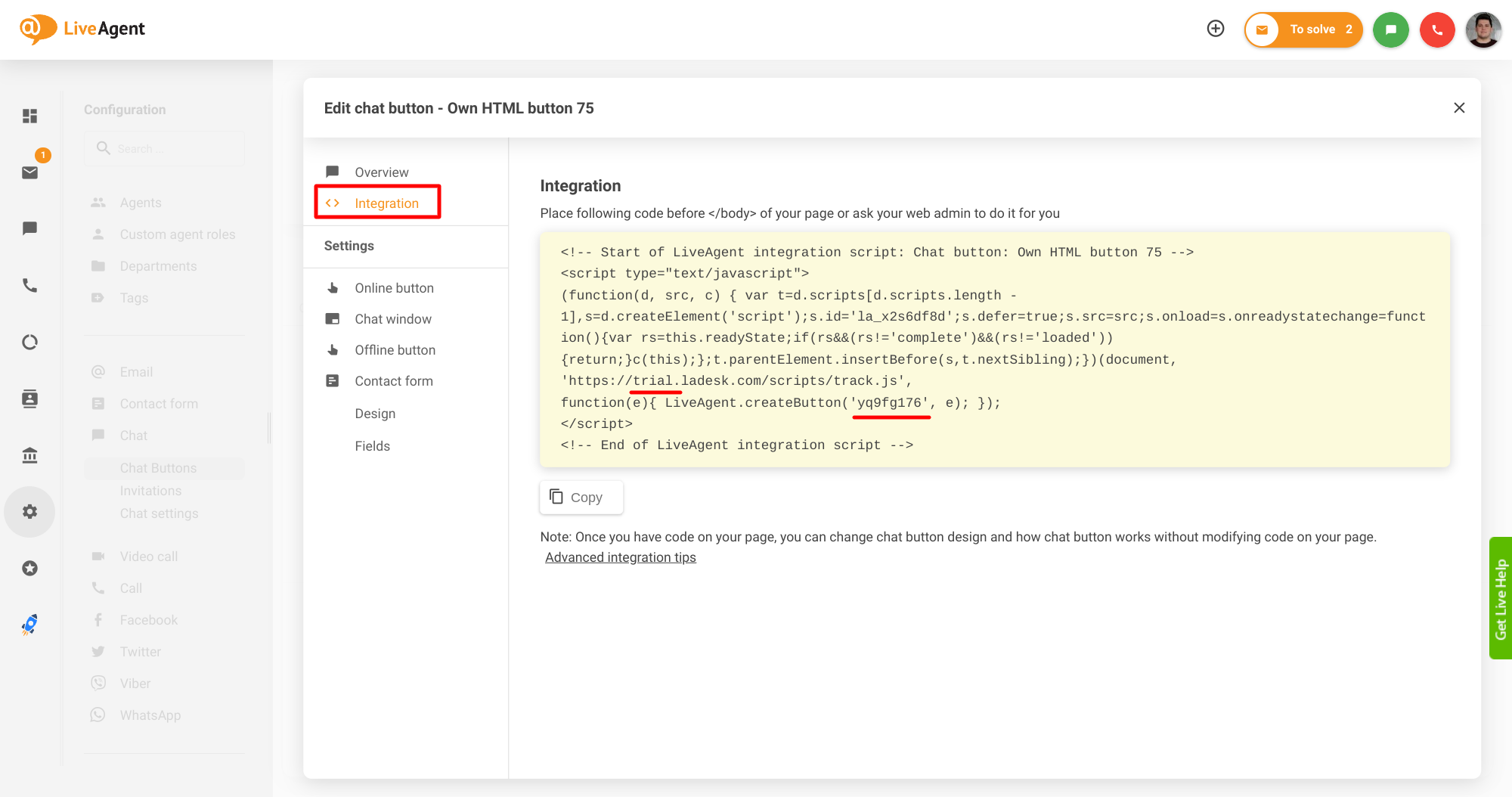
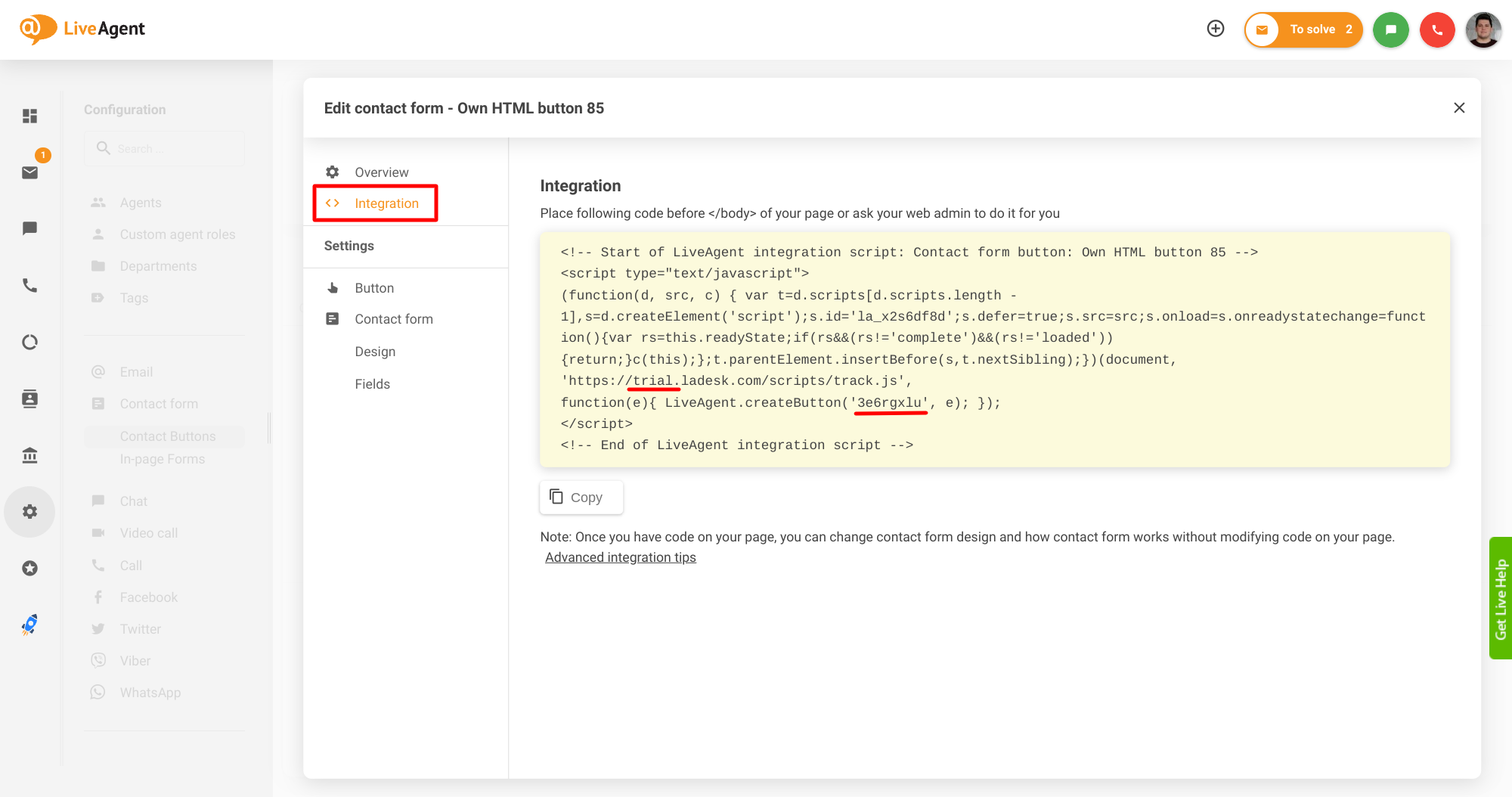
以下のHTMLテンプレートでは、次の値を置き換える必要があります:{your_messenger_name} – FacebookまたはMessengerのプロフィール名に置き換えてください。{your_whatsapp_number} – WhatsAppの電話番号に置き換えてください。{your_subdomain} – LiveAgentのサブドメインに置き換えてください。3e6rgxlu – お問い合わせフォームのIDに置き換えてください(**カスタムHTMLお問い合わせボタン**の作成を推奨します)。yq9fg176 – チャットボタンのIDに置き換えてください(カスタムHTMLチャットボタンの作成を推奨します)。
<div id="multiwidget" class="multiwidget">
<span onclick="openMultiwidget();">×</span>
<ul>
<li id="elementForm" class="form" onclick="contactForm.onClick();">
<font>Contact form</font>
<img src="https://www.liveagent.jp/app/themes/liveagent/assets/images/contact/form.svg" />
</li>
<a href="https://m.me/{your_messenger_name}?text=Hello%20support%20team!" target="_blank">
<li class="mess">
<font>Messenger</font>
<img src="https://www.liveagent.jp/app/themes/liveagent/assets/images/contact/messenger.svg" />
</li>
</a>
<a href="https://wa.me/{your_whatsapp_number}?text=Hi!%20I%20am%20contacting%20you%20about..." target="_blank">
<li class="what">
<font>Whatsapp</font>
<img src="https://www.liveagent.jp/app/themes/liveagent/assets/images/contact/whatsapp.svg" />
</li>
</a>
<li id="elementChat" class="chat" onclick="chatButton.onClick();">
<font>Live chat</font>
<img src="https://www.dropbox.com/scl/fi/6o76udnhmkj67sc2c5a0s/livechat.png?rlkey=dwqzgwlo161dss06dg2dpttx0&raw=1" />
</li>
</ul>
</div>
<div id="mainButton" class="main_button" onclick="openMultiwidget();">
<span>Contact Us</span>
<img src="https://encrypted-tbn0.gstatic.com/images?q=tbn:ANd9GcQkFnGM_CtOsOzloGOge47HQ7-U4gnyhrryn2iA7dmf0A&s" />
</div>
<!-- Start of LiveAgent integration script: Contact form button - Own HTML button -->
<script type="text/javascript">
var contactForm;
(function(d, src, c) { var t=d.scripts[d.scripts.length - 1],s=d.createElement('script');s.id='la_x2s6df8d';s.defer=true;s.src=src;s.onload=s.onreadystatechange=function(){var rs=this.readyState;if(rs&&(rs!='complete')&&(rs!='loaded')){return;}c(this);};t.parentElement.insertBefore(s,t.nextSibling);})(document,
'https://{your_subdomain}.ladesk.com/scripts/track.js',
function(e){
contactForm = LiveAgent.createButton('3e6rgxlu', e);
});
</script>
<!-- End of LiveAgent integration script -->
<!-- Start of LiveAgent integration script: Chat button - Own HTML button -->
<script type="text/javascript">
var chatButton;
(function(d, src, c) { var t=d.scripts[d.scripts.length - 1],s=d.createElement('script');s.id='la_x2s6df8d';s.defer=true;s.src=src;s.onload=s.onreadystatechange=function(){var rs=this.readyState;if(rs&&(rs!='complete')&&(rs!='loaded')){return;}c(this);};t.parentElement.insertBefore(s,t.nextSibling);})(document,
'https://{your_subdomain}.ladesk.com/scripts/track.js',
function(e){
chatButton = LiveAgent.createButton('yq9fg176', e);
});
</script>
<!-- End of LiveAgent integration script -->
<script>
var openTrigger = 0;
function openMultiwidget() {
if (openTrigger === 0) {
document.getElementById("multiwidget").style.bottom = "110px";
document.getElementById("multiwidget").style.opacity = "1";
document.getElementById("mainButton").style.background = "linear-gradient(90deg,#ffbd39 0,#ffbd39 100%)";
openTrigger++;
} else {
document.getElementById("multiwidget").style.bottom = "-350px";
document.getElementById("multiwidget").style.opacity = "0";
document.getElementById("mainButton").style.background = "linear-gradient(90deg,#ffbd39 0,#fa9531 100%)";
openTrigger--;
}
}
const elementForm = document.getElementById("elementForm");
const elementChat = document.getElementById("elementChat");
elementForm.addEventListener("click", openMultiwidget);
elementChat.addEventListener("click", openMultiwidget);
</script>以下のCSSもWebサイトに追加することを忘れないでください:
以下のCSSコードは、お客様のWebサイトのCSSによって上書きされ、マルチウィジェットのデザインが崩れる可能性があります。このウィジェットに関するテクニカルサポートは提供しておりません。Webサイトへのウィジェット統合や、特定のニーズに合わせたカスタマイズについては、Webデベロッパーにお問い合わせいただくことを推奨します。
@import url('https://fonts.googleapis.com/css2?family=Poppins:wght@200;300;400;600;800&display=swap');

#mainButton {
  background: linear-gradient(90deg,#ffbd39 0,#fa9531 100%);
}
#mainButton:hover {
  background: linear-gradient(90deg,#ffbd39 0,#ffbd39 100%) !important;
}
.main_button, .main_button > *, .multiwidget, .multiwidget > *, .multiwidget li img {
  box-sizing: content-box !important;
  vertical-align: initial !important;
}
.main_button {
  position: fixed;
  bottom: 20px;
  right: 20px;
  padding: 10px 16px;
  border-radius: 15px;
  width: 165px;
  height: 56px;
  cursor: pointer;
  box-shadow: 0 0.25em 2em rgba(0,0,0,0.12);
}
.main_button img {
  width: 56px;
  border-radius: 50%;
  box-shadow: 0 0.25em 2em rgba(0,0,0,0.12);
  float: right;
}
.main_button span {
  position: relative;
  top: 15px;
  left: 5px;
  font-size: 16px;
  font-weight: 600;
  font-family: "Poppins","Helvetica Neue",Helvetica,Arial,sans-serif;
  color: white;
}
#multiwidget {
  bottom: -350px;
  opacity: 0;
  transition: .5s;
}
.multiwidget {
  background-color: white;
  font-family: "Poppins","Helvetica Neue",Helvetica,Arial,sans-serif;
  position: fixed;
  right: 20px;
  text-align: right;
  box-shadow: 0 0.25em 2em rgba(0,0,0,0.12);
  width: 260px;
  height: 400px;
  border-radius: 15px;
}
.multiwidget span {
  font-weight: 300;
  padding: 0px 10px;
  font-size: 40px;
  cursor: pointer;
  color: #333;
}
.multiwidget ul {
  padding-right: 10px;
  padding-left: 10px;
  width: 240px;
  border: none;
}
.multiwidget li {
  list-style-type: none;
  background-color: white;
  cursor: pointer;
  transition: .3s;
  margin-bottom: 6px;
  margin-left: 0;
  padding-top: 6px;
  padding-right: 6px;
  border-radius: 15px;
  font-weight: 600;
  border: none;
}
.multiwidget li img {
  width: 56px;
  margin-left: 16px;
  box-shadow: 0 0.25em 2em rgba(0,0,0,0.12);
  border-radius: 50%;
}
.multiwidget li font {
  position: relative;
  bottom: 22px;
  color: #333;
  font-size: 16px;
}
.multiwidget a {
  text-decoration: none !important;
  color: #333;
}
.multiwidget li.form:hover {
  background-color: #fee0e4;
}
.multiwidget li.mess:hover {
  background-color: #efe6f8;
}
.multiwidget li.what:hover {
  background-color: #daf4e7;
}
.multiwidget li.chat:hover {
  background-color: #feefe0;
}CSSファイルに新しいフォントをインポートできない場合は、HTMLコードの<head>セクションに直接フォントを埋め込むことができます:
<link rel="preconnect" href="https://fonts.googleapis.com">
<link rel="preconnect" href="https://fonts.gstatic.com" crossorigin>
<link href="https://fonts.googleapis.com/css2?family=Poppins:ital,wght@0,100;0,200;0,300;0,400;0,500;0,600;0,700;0,800;0,900;1,100;1,200;1,300;1,400;1,500;1,600;1,700;1,800;1,900&display=swap" rel="stylesheet">
カスタムHTMLお問い合わせフォームボタンの作成
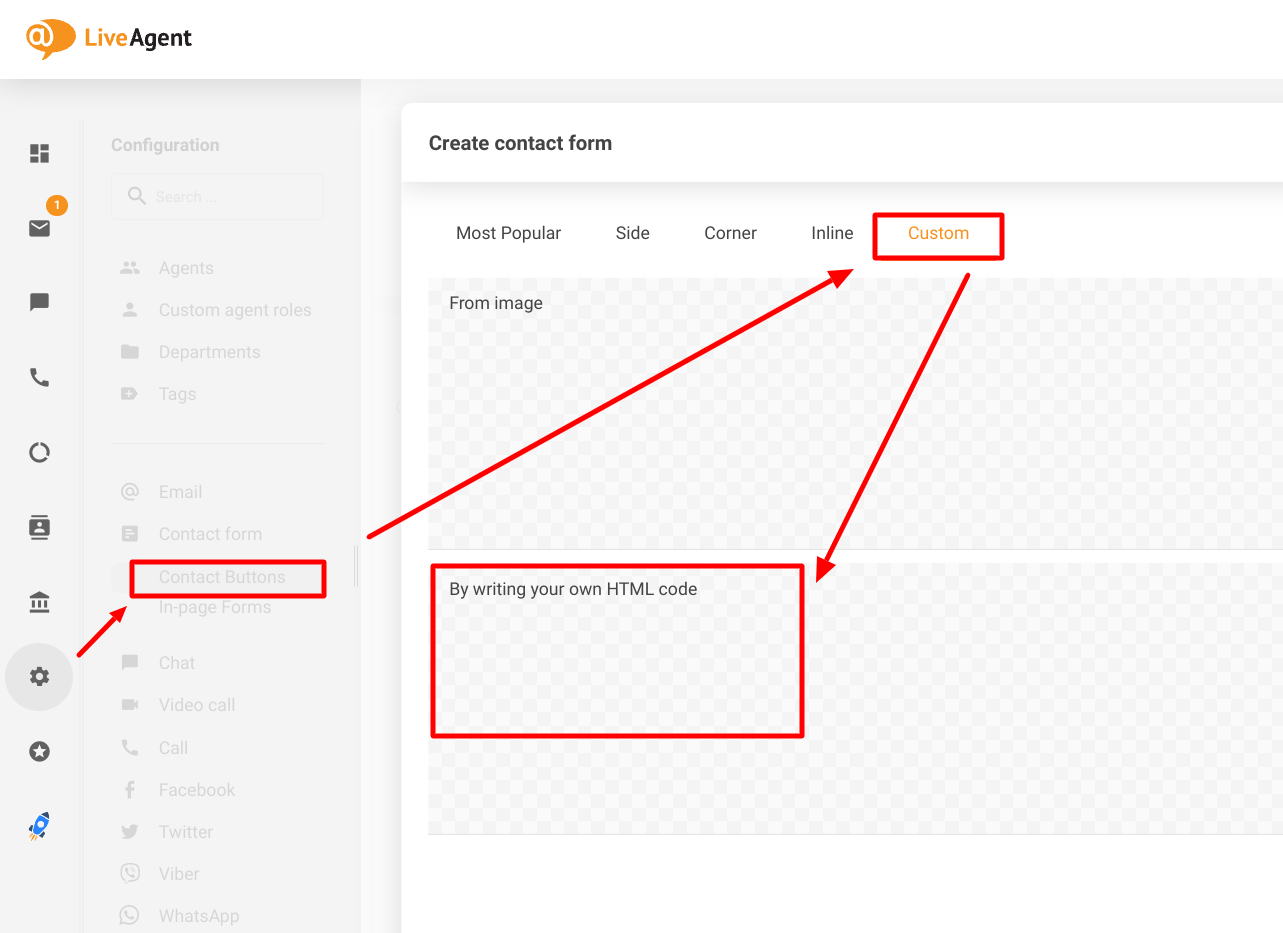
Configuration(設定)> Contact form(お問い合わせフォーム)> Contact buttons(お問い合わせボタン)に移動し、Create(作成)> Custom(カスタム)> Write your own HTML(独自のHTMLを記述)をクリックします。
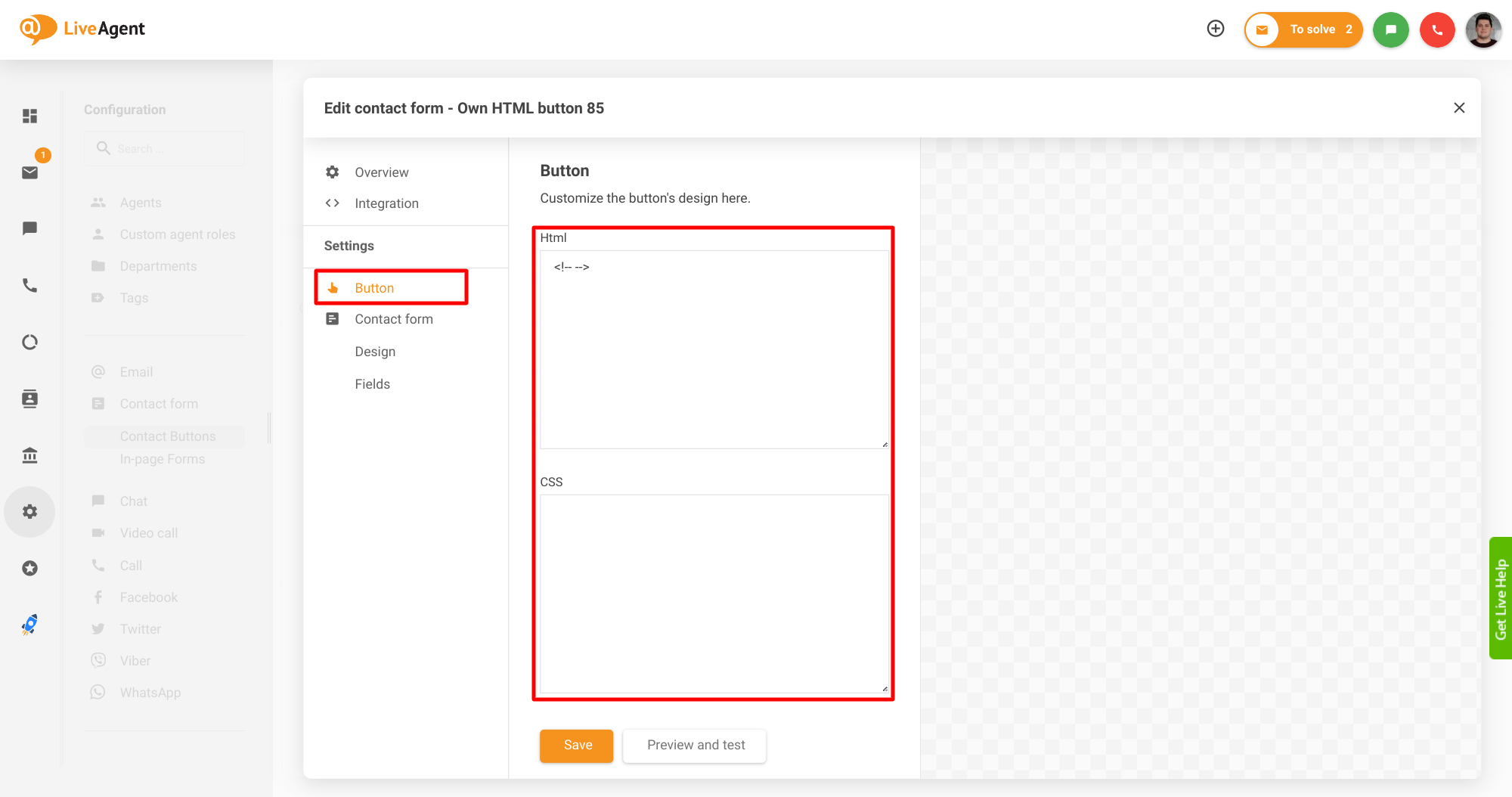
Button(ボタン)セクションで、HTMLおよびCSSコードを削除します(HTMLフィールドには <!-- --> のみ残してください)。
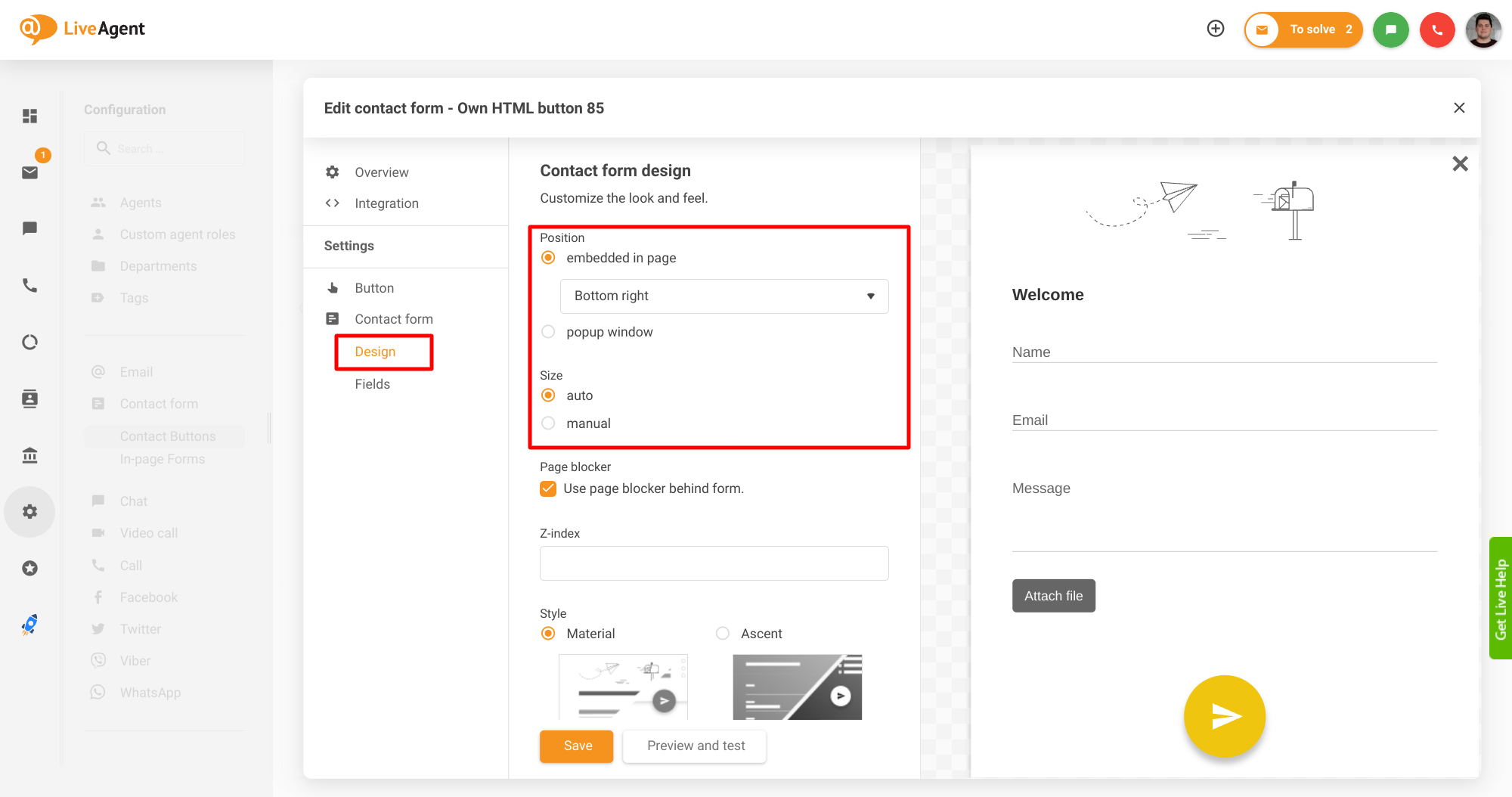
Contact form(お問い合わせフォーム)> Design(デザイン)セクションで、Position(位置)を Embedded in page(ページに埋め込み)> Bottom right(右下)に設定し、Size(サイズ)を Auto(自動)に設定します。
最後に、Integration(統合)セクションからサブドメインとボタンのIDを取得し、マルチウィジェットのHTMLテンプレートに貼り付けます。お問い合わせボタンは、マルチウィジェットテンプレートで定義された要素によってトリガーされます。高度なウィジェット統合の詳細については、以下の**記事**をご参照ください。
カスタムHTMLチャットボタンの作成
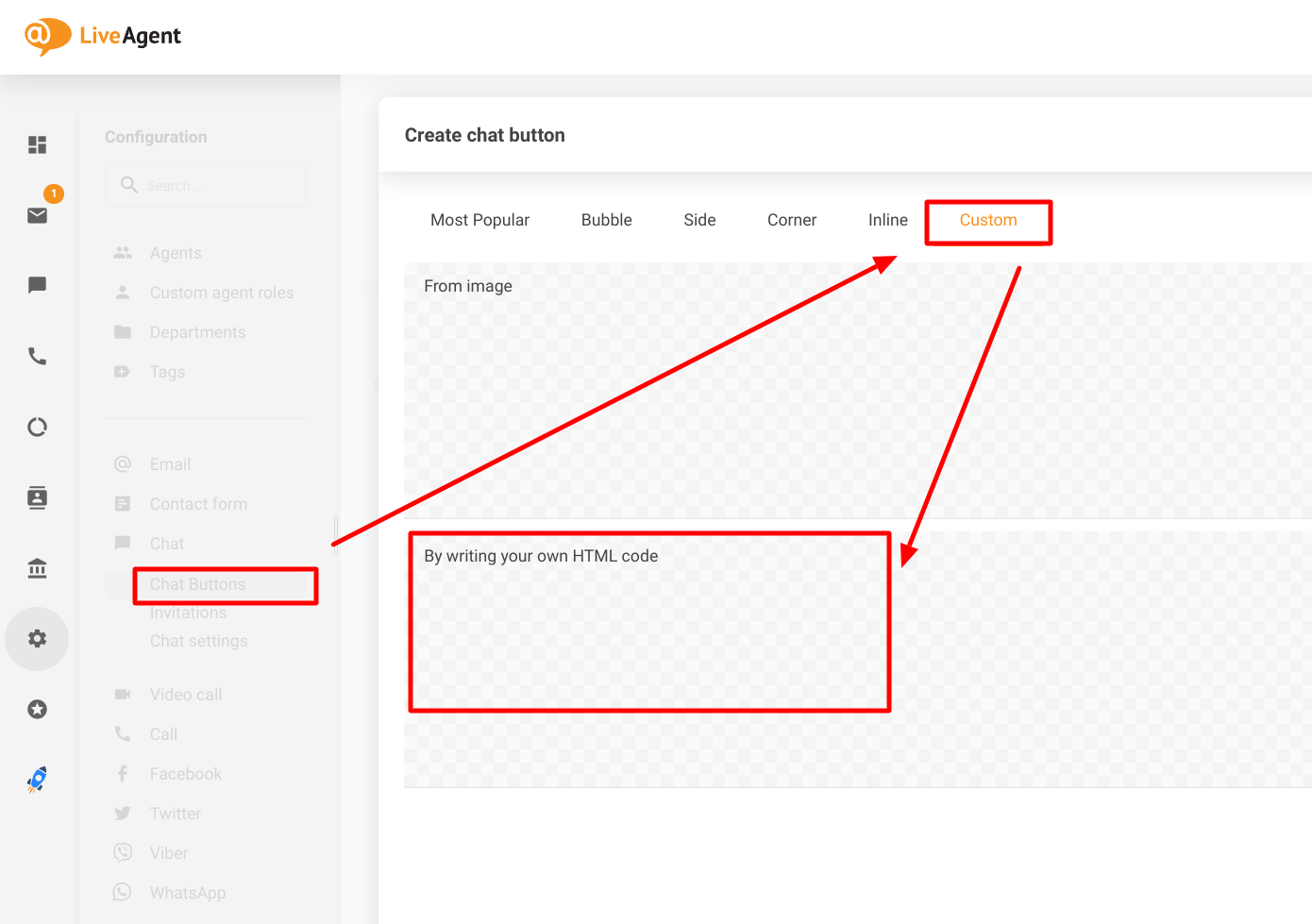
Configuration(設定)> Chat(チャット)> Chat buttons(チャットボタン)に移動し、Create(作成)> Custom(カスタム)> Write your own HTML(独自のHTMLを記述)をクリックします。
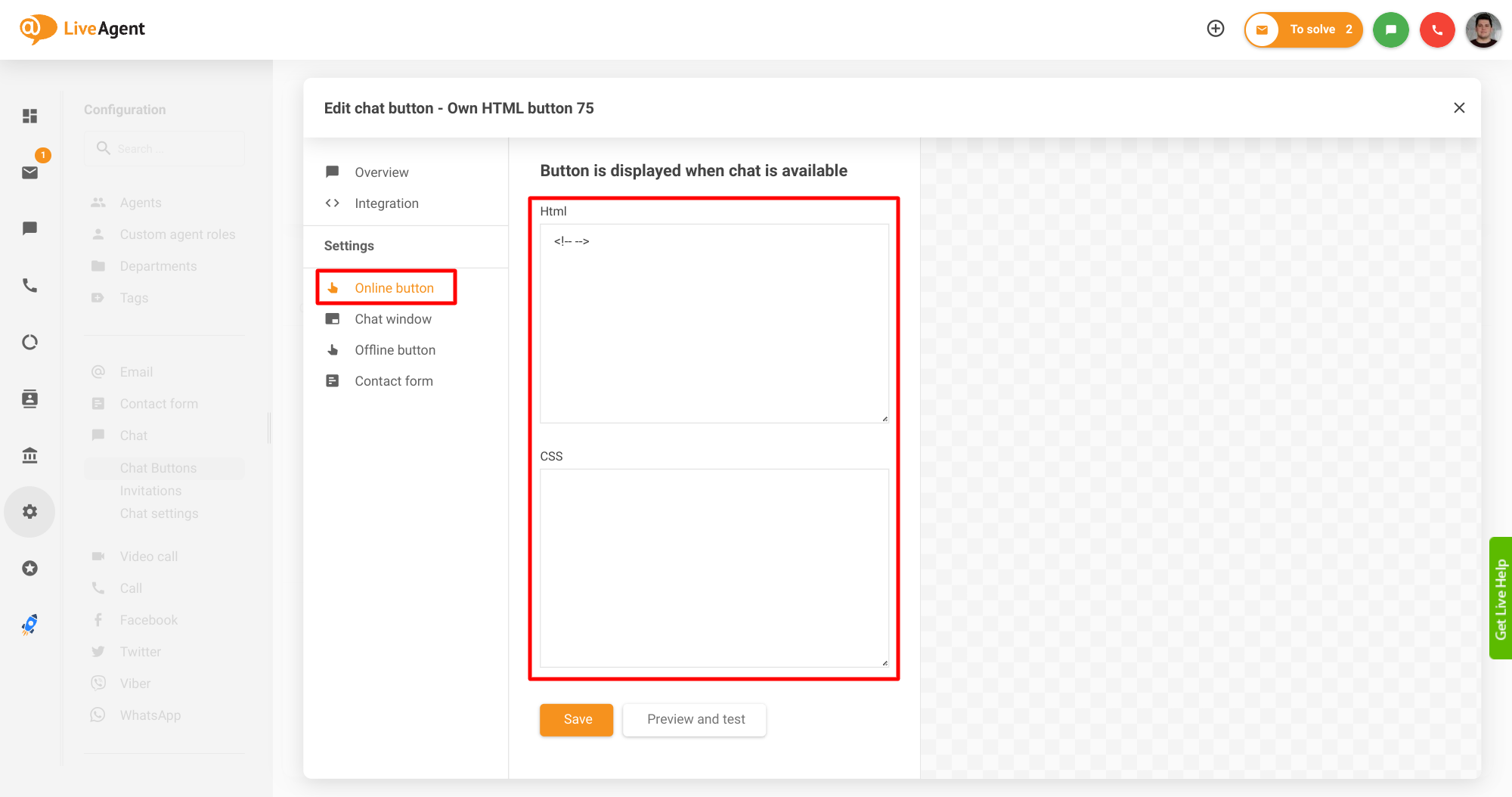
Online button(オンラインボタン)セクションで、HTMLおよびCSSコードを削除します(HTMLフィールドには <!-- --> のみ残してください)。同じ手順をOffline button(オフラインボタン)セクションでも繰り返します。
Contact form(お問い合わせフォーム)> Design(デザイン)セクションで、Position(位置)を Embedded in page(ページに埋め込み)> Bottom right(右下)に設定し、Size(サイズ)を Auto(自動)に設定します。
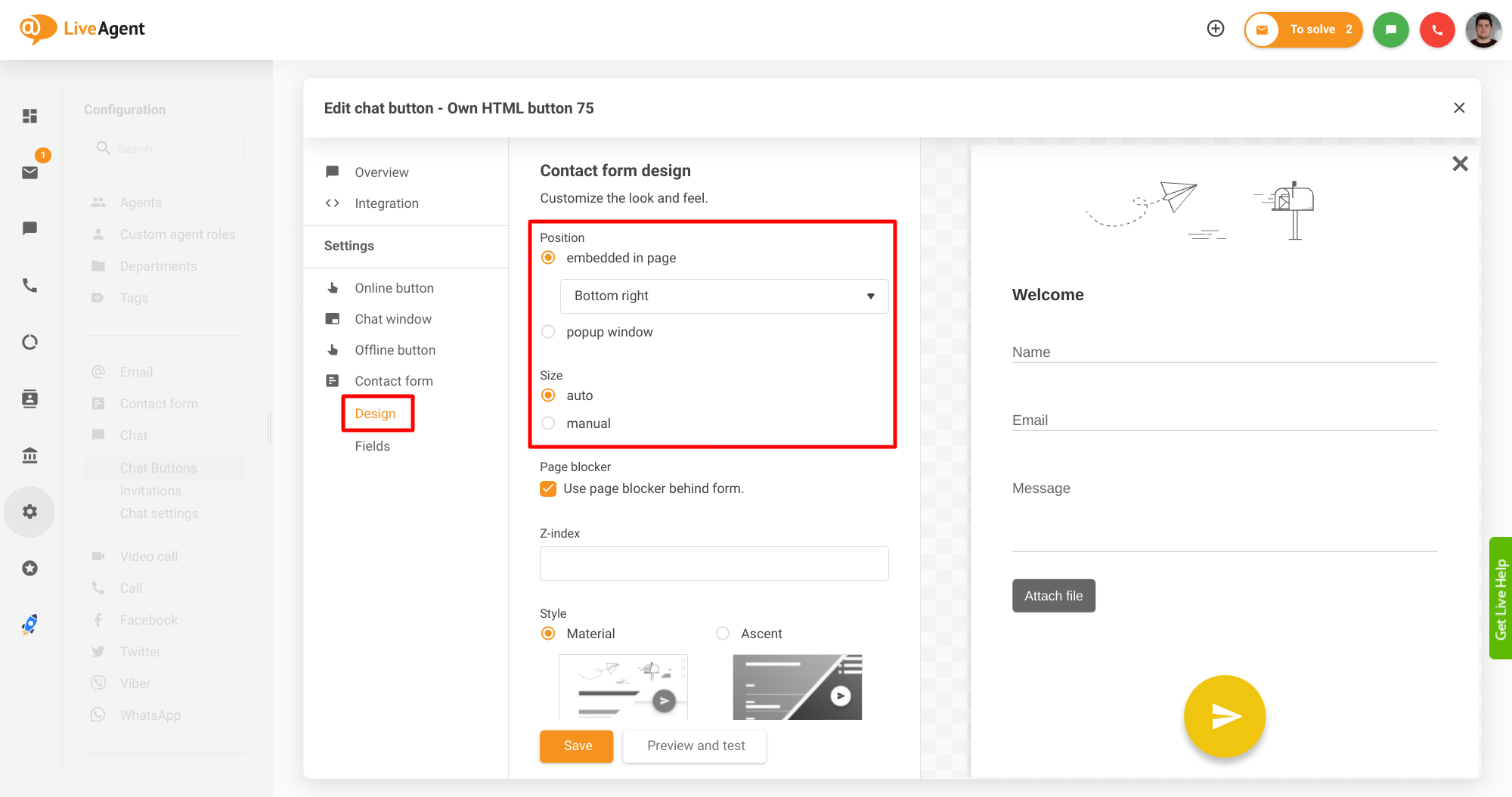
最後に、Integration(統合)セクションからサブドメインとボタンのIDを取得し、マルチウィジェットのHTMLテンプレートに貼り付けます。チャットボタンは、マルチウィジェットテンプレートで定義された要素によってトリガーされます。高度なウィジェット統合の詳細については、以下の**記事**をご参照ください。